Sleep Train
Write your own audio scripts and play them while you sleep — private, customizable, no subscriptions.
Sleep Train lets you write scripts that will be played back to you while you sleep. You can customize your scripts exactly how you want, saying whatever you want. There are no audio packs to buy, no pre-scripted content—everything is customizable.
Sleep Train uses an advanced, on-device language model, Kokoro, that provides better text-to-speech than Apple's built-in speech. The Kokoro model requires a recent iPhone running iOS 26+.
The Sleep Train app has four main pages: Scripts, Sessions, Timer, and Settings.
Scripts
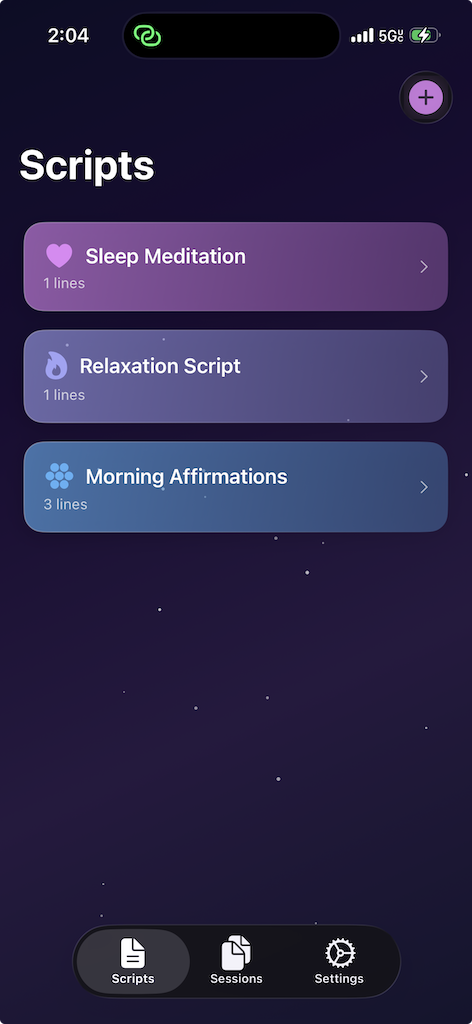
Each Script is a collection of lines. Each line is one spoken utterance. Tapping the name of a script navigates to the Script Editor, where you can edit, add, and delete lines.
Editing Lines
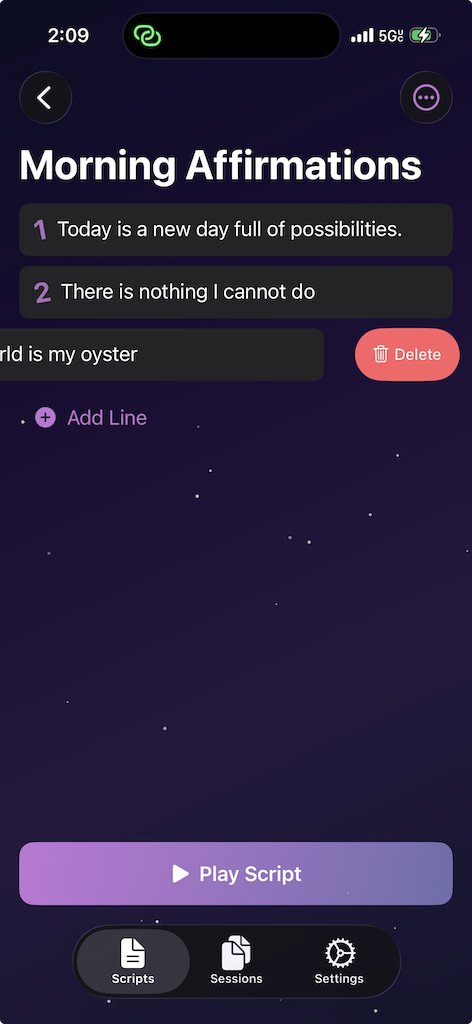
- Play a line: Swipe right
- Delete a line: Swipe left
- Edit a line: Tap on it
- Add a line: Tap Add Line at the bottom of the script
Script Options
- Rename a script: Tap the More… menu in the upper right, then select Rename Script
- Play the entire script: Tap the Play Script button at the bottom of the page to play every line in order
Sessions
Each session is a collection of scripts.
Creating a Session
- In the Sessions tab, tap the + button in the upper right
- Give your new session a name
- Add scripts to your session
- Drag and drop scripts to set their order in the session.
How Sessions Work
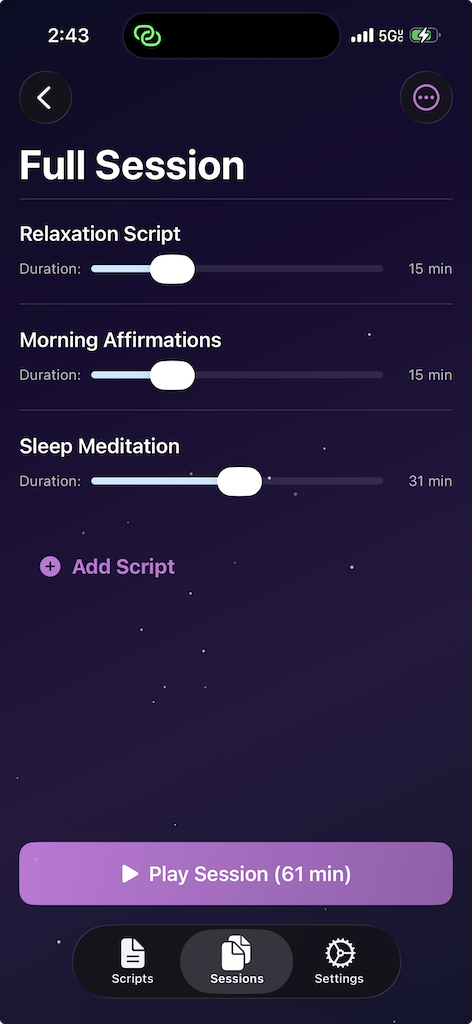
When you add a script to a session, you can set a duration for that script. The session plays lines from the script at random for the duration you set, then moves on to the next script.
If a script has only a few lines but a long duration, the app repeats lines as needed to fill the time. It tries to play every line before repeating any, and will not play the same line twice in a row.
Playing and Managing Sessions
- Play a session: Tap the Play Session button. The session plays with all your configured audio settings.
- Delete a session: Long press on a session to bring up the options menu.
Timer
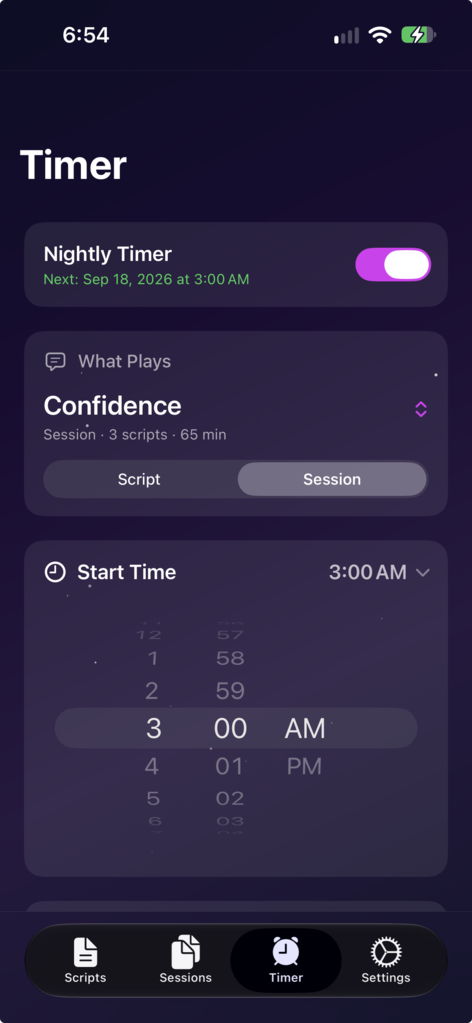
The Timer tab schedules a nightly session or script to start automatically, right from the app — the recommended way to play Sleep Train while you sleep on iOS 27 and later.
Setting a Nightly Timer
- Open the Timer tab.
- Pick a start time.
- Choose what plays: a Script (with a duration stepper from 1–60 minutes) or a Session (which uses its own configured durations).
- Turn on the Nightly Timer toggle.
Once the toggle is on, Sleep Train schedules a silent, repeating daily notification at the time you chose, and the timer keeps firing every night until you turn the toggle off. The first time you turn it on, the app asks for notification permission.
Notifications must stay allowed. The notification itself is silent — no sound, no badge — since you're asleep when it fires. You can turn off banners and sounds for Sleep Train in iOS Settings and the timer will still work, but you must leave notifications allowed, or the timer can't fire at all.
One-Time Shortcuts Setup
The Timer tab schedules when playback happens, but on iOS 27 you still set up a one-time automation in Shortcuts so the phone knows to run Sleep Train at that moment. Unlike the older approach below, you only have to do this once — you never need to come back and edit it, even when you change which script or session is playing.
- Open the Shortcuts app.
- Tap + to create a new shortcut, then choose Automation > Notification.
- Choose Sleep Train as the app.
- Set Notify off.
- Search for Play Timed Audio and add it. Disable Show When Run.
- Rename your shortcut by tapping the down-arrow next to the name at the top.
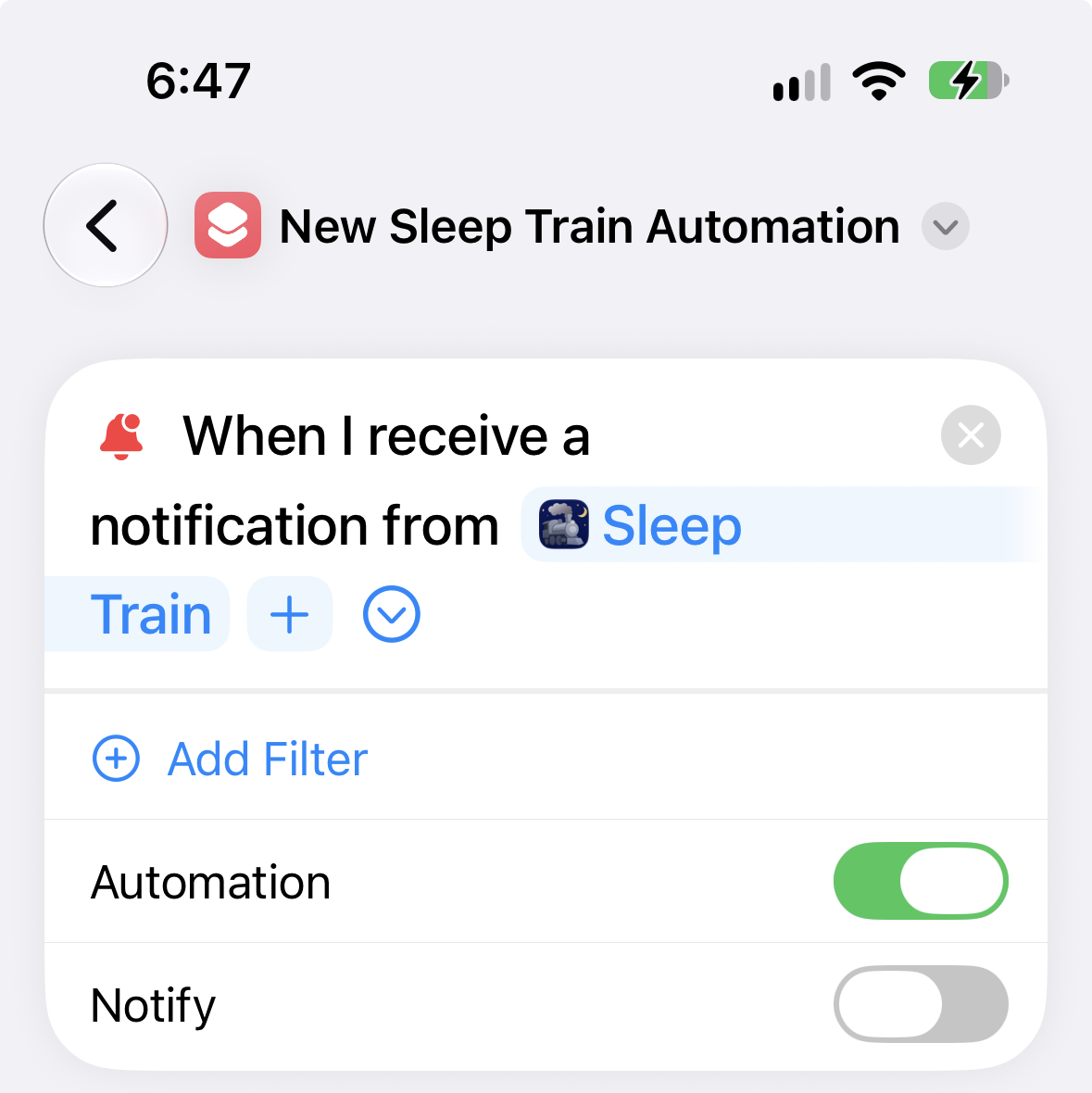
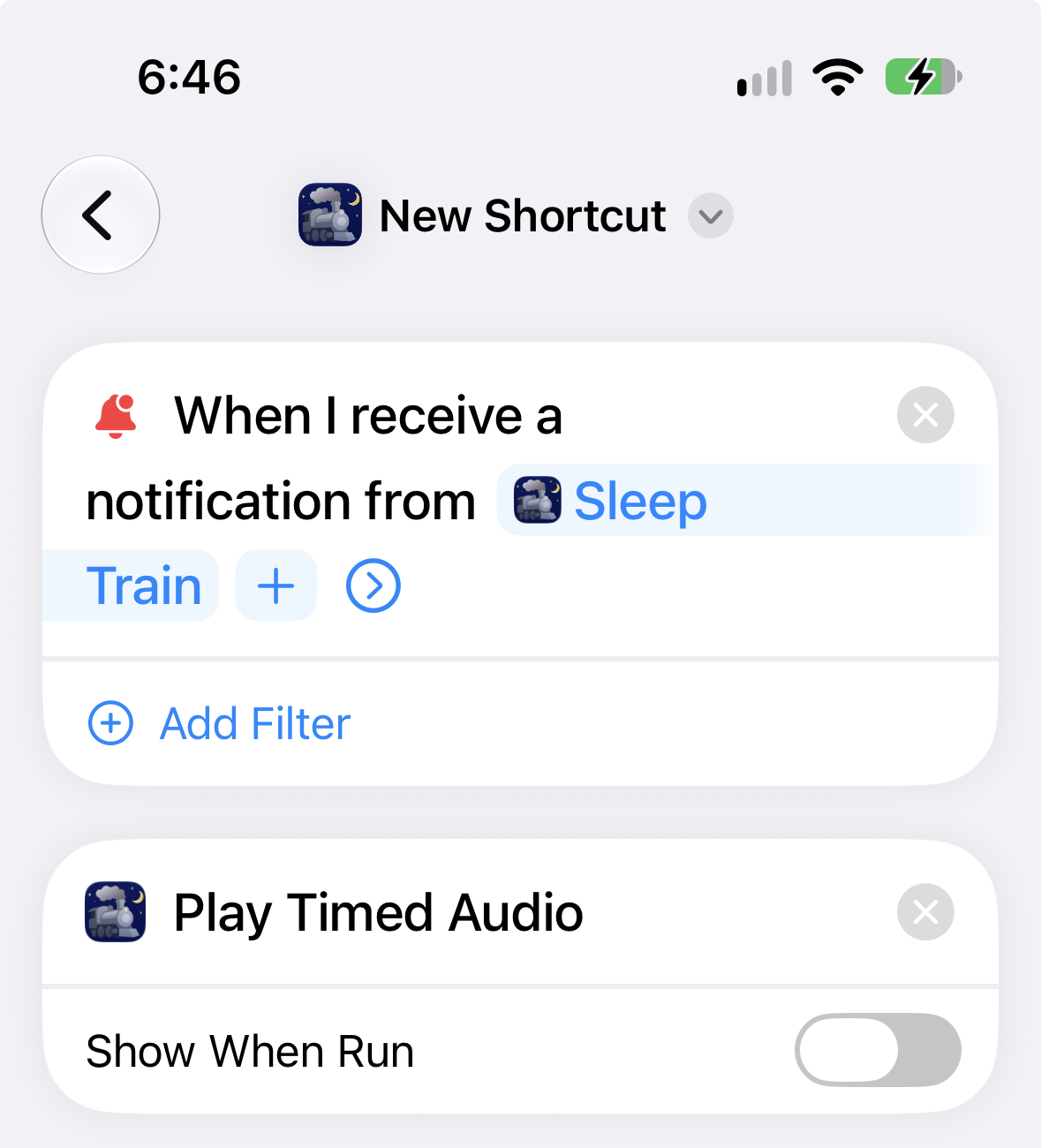
There's no separate save step — Shortcuts saves the automation automatically as you go.
That's it — from now on, everything is controlled from the Timer tab. Change the time, switch scripts, or turn the schedule off entirely, all without opening Shortcuts again. Play Timed Audio takes no parameters; it simply plays whatever the Timer tab currently has selected, which is what makes the one-time setup possible.
The App Notification automation trigger requires iOS 27. Sleep Train itself runs on iOS 26.2 and later, so if you're not yet on iOS 27, use the manual Shortcuts scheduling described below instead — it still works, and any automation you've already built with Play Sleep Script or Play Sleep Session continues to work unchanged.
Timer scheduling currently supports a fixed clock time only; starting a set number of hours after you go to bed isn't yet supported from the Timer tab. For that, see Delayed Start with a Hold Focus below.
Settings
Sleep Train has a wide variety of audio settings to tune the voice exactly how you want it.
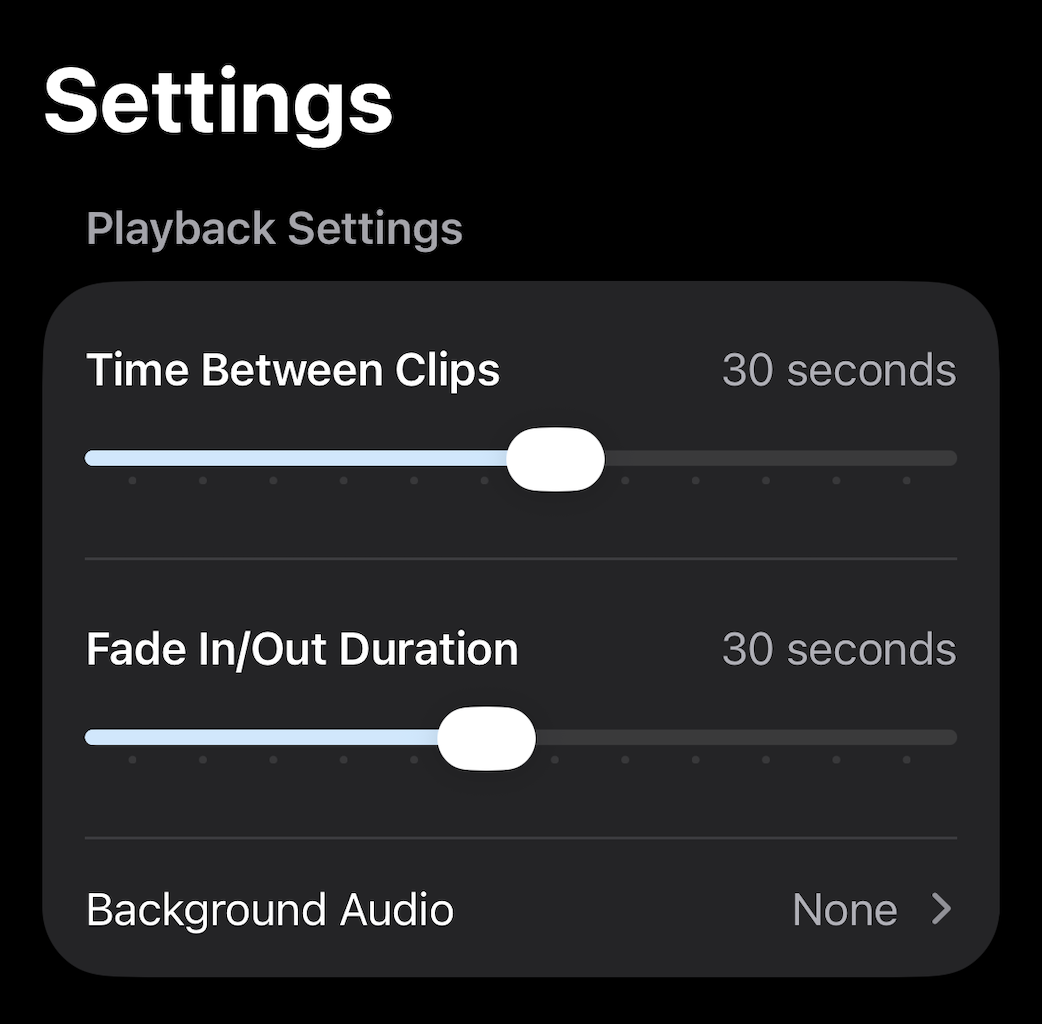
Playback Settings
Time Between Clips sets the pause between each line when played back. A short duration reads lines quickly one after the other.
Fade In/Out sets how long the background audio takes to fade in at the start of a session, and how long everything takes to fade out at the end. Spoken lines always start at full volume so they're easy to hear.
Background Audio is a Pro Audio feature and requires purchase of the Pro Audio item. Choose from several audio effects that play in the background while your session runs. A separate Background Volume control lets you balance the background audio against the spoken script.
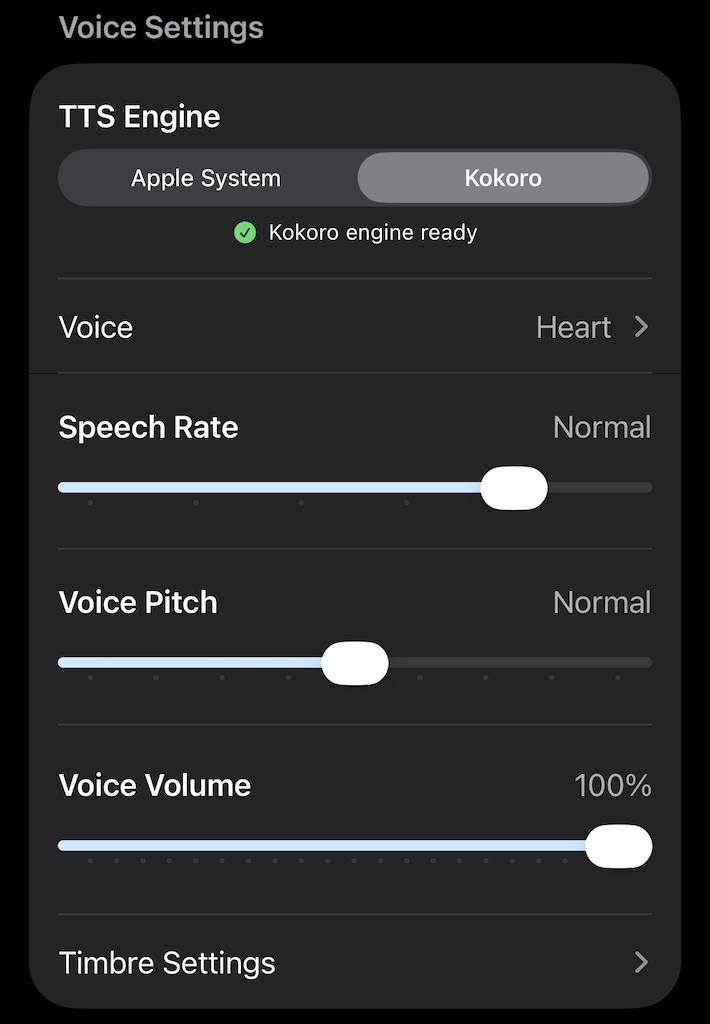
Voice Settings
TTS Engine — By default, standard Apple Speech is used, and you can select any Apple voice. If you have iOS 26+, you can also select the Kokoro Engine, a separate on-device language model that provides higher-quality speech. The first time you use Kokoro it downloads the model to your phone, which may take a minute. All speech processing happens locally on your device—no part of your scripts is ever sent anywhere.
Voice — Select either an Apple or Kokoro voice for playback. Changing the voice or any voice-related parameter plays a short demo so you can hear what it sounds like.
Speech Rate — Adjusts the speaking tempo, faster or slower.
Voice Pitch — Raises or lowers the pitch of the voice.
Voice Volume — Usually set at 100%, but you can lower this to balance the voice against background audio.
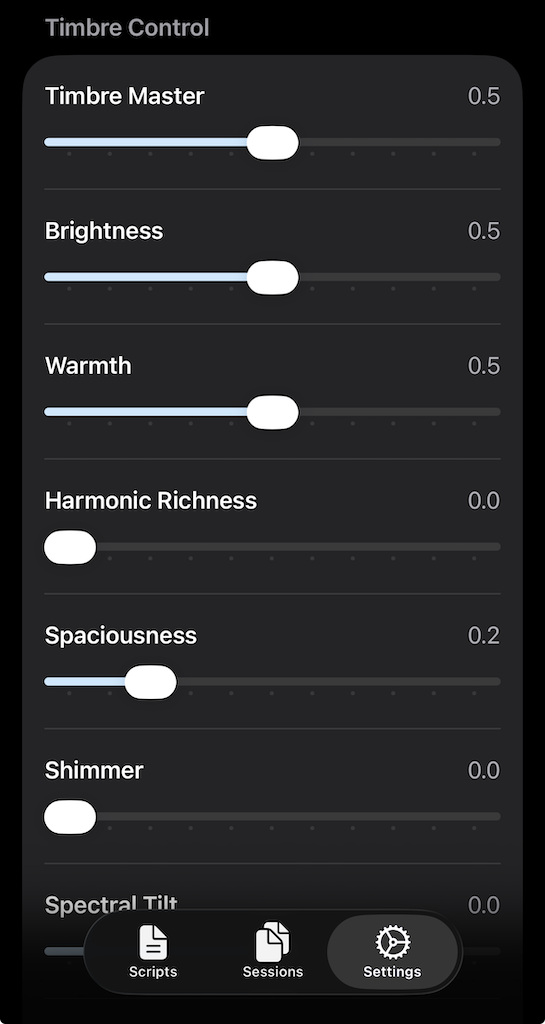
Timbre Settings is another Pro Audio feature unlocked with the Pro Audio purchase. Background Audio and Timbre are bundled together—purchasing Pro Audio unlocks both.
- Timbre Master: Master slider for all timbre effects. Setting this to zero disables all timbre controls.
- Brightness: Increasing Brightness makes the tone clearer, crisper, and more forward.
- Warmth: Increasing Warmth adds fullness and body, giving the sound a rounder and more intimate quality.
- Harmonic Richness: Increasing Harmonic Richness adds complexity and texture, making speech feel denser and more detailed.
- Spaciousness: Controls the perceived sense of space and width in the sound.
- Shimmer: Adds a subtle high-frequency sheen or airy sparkle above the main body of the sound.
- Spectral Tilt: Tilting upward increases highs while decreasing lows, resulting in a brighter overall sound. Tilting downward does the opposite, emphasizing lows and reducing highs.
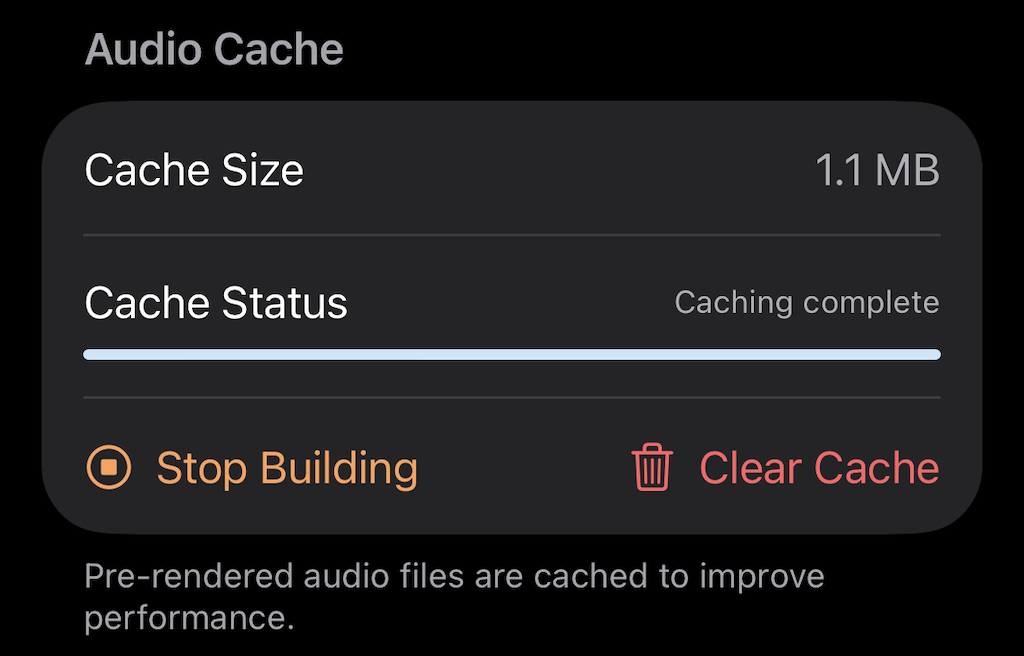
The Audio Cache
Sleep Train renders the text of your scripts into audio as a background process, enabling instant playback without delay. The cache rebuilds automatically whenever you change a script or audio settings. If you notice any issues, you can manually rebuild the audio cache from the Settings page.
Shortcuts and Automations: Playing at Night
For the simplest operation, tap the Play Session button when you go to sleep. If you're on iOS 27 or later, the Timer tab above is the easiest way to schedule playback automatically. The instructions below cover manual scheduling with iOS Shortcuts — still the right approach if you're on an earlier iOS version, or if you already have an automation set up this way and don't need to change it.
Using Shortcuts
- Make sure you have Apple's Shortcuts app on your device. It should be pre-installed, but if you've removed it you can re-download it from the App Store.
- Open the Library and search for Sleep Train. You'll see two actions:
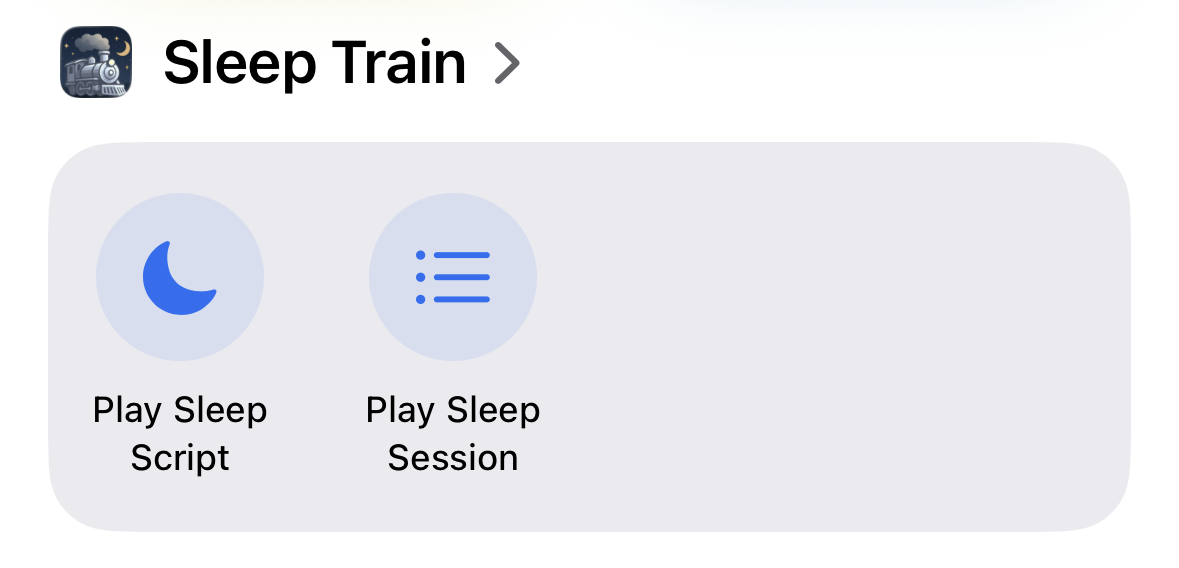
- Play Sleep Script — plays a single script
- Play Sleep Session — plays a full session
- To create a shortcut: tap the + button, search for Sleep Train, and add a Play Sleep Session action. Tap Session Name to choose which session will run, then tap the shortcut title to rename it.
- Disable Show When Run to prevent your phone from waking up to display a popup when the shortcut runs.
Scheduling with Automations
- Switch to the Automation tab in Shortcuts and create a new automation.
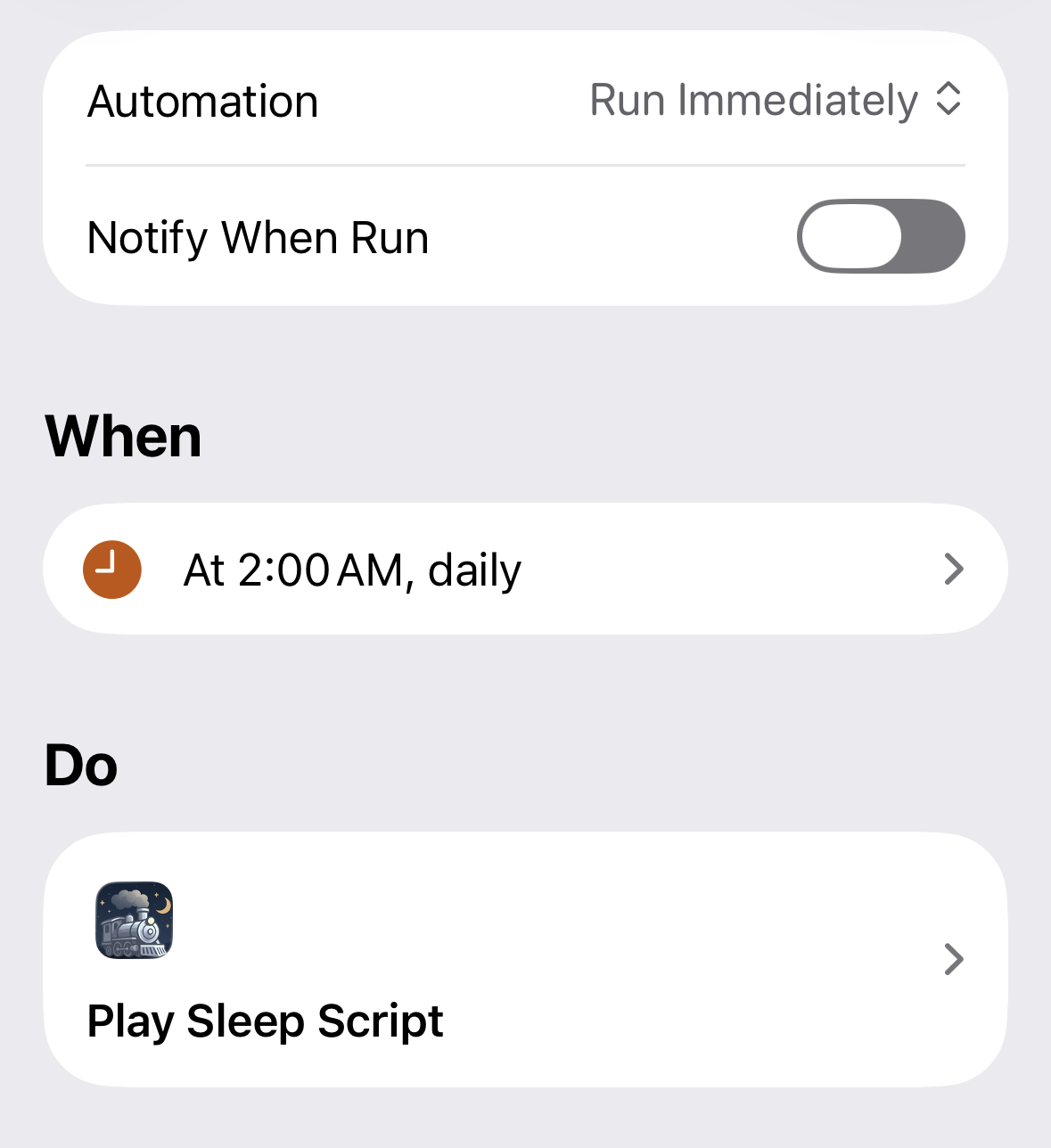
- Make it a Time of Day automation and set the desired time (for example, 2:00 AM).
- Select Run immediately to skip the confirmation prompt.
- In the next screen, select the shortcut you just created.
Your phone will now play your sleep session at the scheduled time every night.
Delayed Start with a Hold Focus
For more control, you can trigger the session after a delay from bedtime rather than at a fixed clock time. This uses a Hold focus.
- Create a Hold focus in your iOS Focus settings.
- Download this shortcut: Hold Timer. When run, the Hold Timer shortcut prompts you for a duration, turns on your Hold focus, then turns it off after that time. For example, if you set a 2-hour hold when you go to bed, the focus turns off 2 hours later.
- Create a new automation triggered When Hold is turned off. Set that automation to play your sleep session.
This way, your session starts automatically after your chosen delay—no matter what time you go to bed.
For information about how Sleep Train handles your data, see the Privacy Policy.